Showing posts with label Google Chrome. Show all posts

New in Chrome 16: Profiles and Cloud Print for Any Page

Wednesday, December 14, 2011 0 comments
Chrome 16 is ready for primetime and it brings some new features:

1. The print preview page now integrates with Cloud Print. That means you can now print any webpage or PDF file using Cloud Print.


While Cloud Print makes more sense on a mobile phone or a tablet, you can also use it on your computer. The printer management page lets you share printers with your contacts just like you would share files in Google Docs. You're no longer limited to sharing a printer with other computers on the same network.

2. Chrome now has an interface for creating profiles. Go to Options > Personal Stuff and click "Add new user". After creating a new profile, Google asks you to log in using a Google Account and sync your settings and data, but this is optional. You can change the profile name and the icon that's always displayed in the top-left corner of the window. Profiles work just like the incognito mode, except that the data is saved and you can use multiple profiles at the same time. Just click the profile icon and you can open a new window in a different profile.

It's important to keep in mind that profiles can't be password-protected and they aren't intended to replace the user accounts from your operating system. Profiles are useful if you need different settings, bookmarks, apps at work, at school or in your past time. You can create a profile for games, install your favorite games from the Chrome Web Store, download a game-related theme and add some bookmarks.


3. YouTube, Gmail and Google Search are the apps that are automatically added when you install Chrome or create a new profile. The Search app was about to be removed because the icon was ugly.


{ Thanks, Abhishek. }

Changing the User Agent, a New Google Chrome Feature

Monday, December 12, 2011 0 comments
Changing the user agent of a browser is sometimes helpful if you're visiting a site that doesn't work well in your browser or if you're a developer and you want to test a site. Until recently, changing the user agent required installing an extension, opening about:config or adding a command-line parameter.

Now that browsers started to include powerful developer tools and even Internet Explorer has a built-in user agent editor, Chrome added a similar feature. It's only available in Chrome 17 (Dev Channel / Canary) right now.

Here's how to change the user agent:

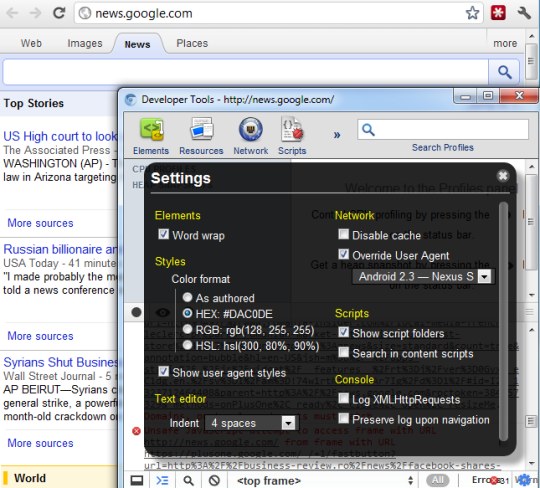
1. open the Developer Tools (Ctrl+Shift+I on Windows/Linux, Command - Option - I on Mac OS X)
2. click the "settings" icon at the bottom of the window
3. check "override user agent" and select one of the options (Internet Explorer 7/8/9, Firefox 4/7 for Windows/Mac, iPhone, iPad and Nexus S running Android 2.3). You can also select "other" and enter a custom user agent.


{ via François. Thanks, Venkat. }

Chrome Extension for Google+ Notifications

Thursday, November 3, 2011 0 comments
If you miss Google+ notifications when you're not visiting a Google page, you can now install a Chrome extension and always get the latest updates.

"Whenever you have a new notification (for example, when someone adds you to a circle or shares a post with you), the extension button will turn red and show you how many updates are waiting for you. Once you click the button, a window will drop down showing you all of your most recent notifications. You can act on notifications right from the extension, whether you're replying to a comment or adding someone back to your circles. That way you can stay up-to-speed with your circles on Google+ no matter where you are on the web," informs Google.


There's also a +1 button for Chrome that lets you +1 a page and share it with your circles.

{ Thanks, Venkat. }

What's New in Chrome 15?

Wednesday, October 26, 2011 0 comments
Chrome 15 brings a few changes and some new features. Here are some of them:

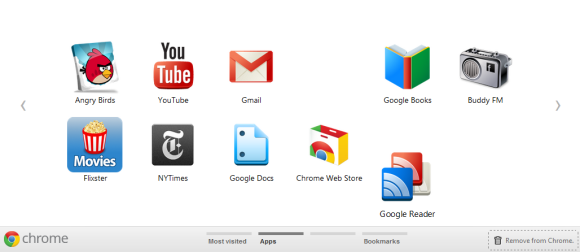
1. A redesigned new tab page inspired by mobile interfaces. There are two "homescreens" for apps and most visited pages, but you can create a new "homescreen" by dragging apps and pages to the bottom bar and selecting the new "homescreen". You can also remove pages and apps by dragging them to the bottom bar and then to trash area ("remove from Chrome"). Any bookmark can now become app: just drag it to the new tab page. This also works for the most visited pages.


2. The extension manager is now a section of the options page and has a new interface. You can now use the inline search box to find extensions. The old interface is displayed if you type chrome://extensions in the address bar, while the new address is: chrome://settings/extensions.


3. Chrome's menu has changed: the bookmarks menu is easier to find and there's a new item for Chrome sync.


4. If you don't like Chrome's print preview page, use a shortcut to open the native print dialog: Ctrl+Shift+P (Cmd-Shift-P for Mac).

5. You can now print headers and footers.


Can you find other new features?

Chrome Web Store's Redesign

Tuesday, October 25, 2011 0 comments
As promised, Google's Chrome Web Store has a new interface that uses promotional images and larger screenshots, opens extension pages in overlays and makes it easier to install extensions, themes and apps. Another change is that the new version is a lot faster as it uses AJAX to load extension pages. Infinite scrolling replaces pagination, so you no longer have to click "next".

"Promotional images are your chance to capture users' attention and entice them to learn more. Don't just use a screenshot; your images should primarily communicate the brand," suggests Google in the documentation.


Unfortunately, search results are now terrible, as you can see in the screenshot above. When searching for [Gmail], from the top 10 search results, only 2 extensions and apps are relevant. The top search result for [YouTube] is AdBlock, while the first result for [Google Docs] is FB Photo Zoom. The search algorithm is not good enough and Google made things worse by mixing the results for extensions and apps.

The new interface is only available in Chrome and Chromium, so you can go to https://chrome.google.com/webstore in a different browser to see the old interface.


{ Thanks, Costin and Jérémy. }

New Icons for Games and Music in Google Chrome

Thursday, October 20, 2011 0 comments
The latest Dev Channel release of Google Chrome for Chromebooks added two icons to the new tab page. They're similar to the Chrome Web Store icon, but they're for games and music. At the moment, the new icons don't send users to some special pages, but it's likely that they'll be used to promote the games section from the Chrome Web Store and an updated Google Music.


As AllThingsD reports, "Google is finally close to launching a music service with help from the labels". The news was confirmed by Andy Rubin, Google's Senior Vice President of Mobile. "Google is in the very, very early phases of adding consumer products to our portfolio. The media industry didn't see us as that. They saw us a search company," Andy Rubin said, trying to explain why it takes so long to launch a music store and other similar services. At the moment, Google Music is an invite-only service that lets you upload up to 20,000 songs and stream them to any computer, iOS or Android device.

{ Thanks, Sean. }

Chrome Remote Desktop

Saturday, October 8, 2011 0 comments
Chrome Remote Desktop is a new Chrome extension that lets you remotely control a computer from your browser. It's the first software that uses a technology code-named "chromoting" and it's especially useful if you have a Chromebook.
The goal of this beta release is to demonstrate the core Chrome Remoting technology and get feedback from users. This version enables users to share with or get access to another computer by providing a one-time authentication code. Access is given only to the specific person the user identifies for one time only, and the sharing session is fully secured.

One potential use of this version is the remote IT helpdesk case. The helpdesk can use the Chrome Remote Desktop BETA to help another user, while conversely a user can receive help by setting up a sharing session without leaving their desk. Additional use cases such as being able to access your own computer remotely are coming soon.

Chrome Remote Desktop BETA is fully cross-platform, so you can connect any two computers that have a Chrome browser, including Windows, Linux, Mac and Chromebooks.

I've installed the extension on a Dell laptop that runs Windows 7 and on a Samsung Chromebook. The extension has more than 17 MB, so you have to wait a little bit until it's downloaded and installed. After installing the extension on my Dell laptop, I clicked the new icon from the new tab page and Chrome Remote Desktop asked me to "grant extended access permissions" to my computer.


Chrome Remote Desktop is a special extension because it can be used to control your computer. It's interesting that the extension uses Google Talk's technology to send messages.


When you decide to share your computer, Remote Desktop generates a code you need to enter on a second computer.


Here's what happens after installing the extension on my Chromebook:


The performance is pretty good, but it depends on your Internet connection and the computers you're using. The extension is especially useful for businesses and it will make Chromebooks even more attractive for companies.

{ Thanks, Venkat. }

Google Chrome's New Bookmarks UI

Tuesday, September 13, 2011 0 comments
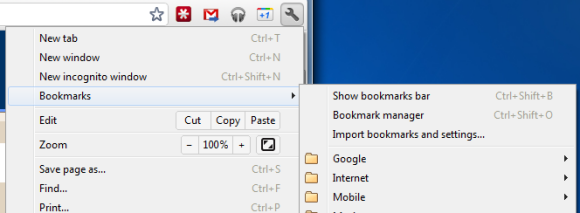
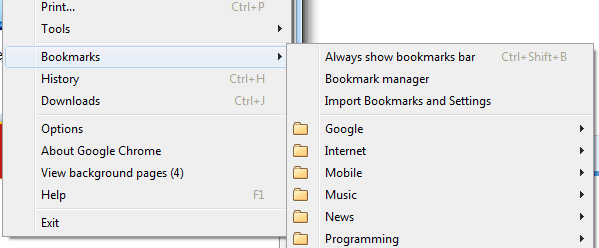
Google Chrome 15 brings some new ways to access your bookmarks. There's a new bookmarks menu below the "new incognito window" option that lets you quickly find your bookmarks. This feature is already available in Chrome 14 (now in beta), but the bookmarks menu is more prominently displayed in Chrome 15.


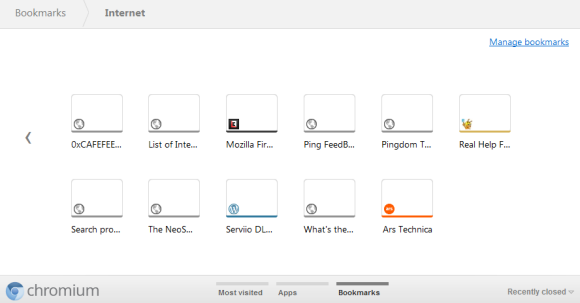
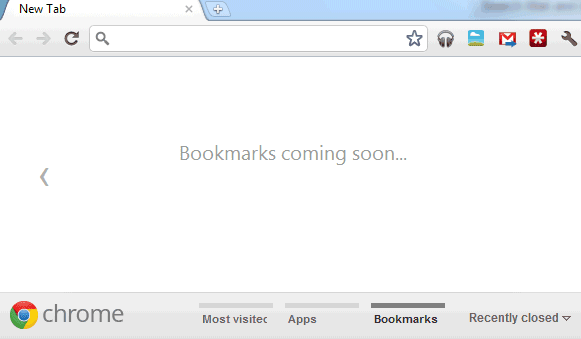
The new tab page no longer includes the bookmarks bar if this feature is disabled. The main reason for removing the bar is that the new tab page now includes a special section for bookmarks, next to the sections for apps and frequently visited pages. Bookmarks are displayed just like apps, but the thumbnails are much smaller and they seem to be blank, at least for now. You can now drag bookmarks to the list of apps, reorder them or remove them without using the bookmark manager.


While there are many advantages to the new interface for browsing and managing bookmarks, the thumbnail view is not very useful if you have a lot of bookmarks in a folder. Page titles are truncated to the first 10-15 characters and it's not always easy to find a bookmark. A list view is more space-efficient.

Chrome's Spell Checker Gets Smarter

Thursday, September 1, 2011 0 comments
Just like Firefox, Chrome doesn't have a smart spell checker. It uses a dictionary and it shows spelling suggestions for the words that aren't included in the dictionary. Chrome's suggestions aren't always great because they ignore the context.


Google has an excellent spell checker that's used in Google Search, but Chrome's team avoided using it because of privacy concerns. It seems that Google changed its mind and some of Chrome's spelling suggestions will be obtained from Google's "did you mean" service.


A future update will "integrate the Spelling service (a.k.a. 'Did you mean') to a context-menu of Chrome so we can see the spell-check result retrieved from the Spelling service. This change sends a JSON-RPC request to the service in the background and updates a context-menu item." Even if the suggestions can't be displayed instantly, they're a lot better than the suggestions generated by Chrome. An even better idea would be to provide an option to spell check the entire text using Google's online service.

Chrome's Most Important Feature

Wednesday, August 31, 2011 0 comments
Ben Goodger, a former Mozilla developer who now works at Google on the Chrome team, thinks that autoupdate is one of the most important Chrome features.

Autoupdate is one of Chrome's killer features. It is magical because it continuously updates an entire development platform invisibly, frequently. Supporting it has driven how we structure our development processes. It was also one of Chrome's first features. Delving back into project history long before we launched publicly in 2008, the autoupdate project was one of the very first we started working on. The idea was to give people a blank window with an autoupdater. If they installed that, over time the blank window would grow into a browser. And today, some five years after our autoupdater started updating a mostly blank window that could barely load webpages, it is now an engine for delivering an incredibly sophisticated web technology platform onto our users' computers, which in turn allows web app developers to build amazing new online experiences. I have never seen such an effective platform update mechanism before.


Chrome automatically updates in the background and makes sure that it always has the latest features and bug fixes. You don't longer have to worry about version numbers, the list of features from the latest release and you can no longer decide that it's a bad idea to upgrade to the new version because of an annoying change. Extensions also update in the background and you're always using the most recent versions. That's a great thing for developers, who don't have to support legacy Chrome versions and spend so much time testing their sites and extensions. It's also a great thing for users, who can rely on a secure browser that has the latest security fixes and it's better protected against malware. They can also use the latest Web apps without having to worry about updating their browser.


Chrome's rapid release cycle works well because of the autoupdater. Annoying users with notifications about the new releases makes people delay updating their browser. Some of them will find ways to disable the updater and will continue to use an old version of the browser. Ben Goodger thinks that making the updater invisible is very important:

Chrome's autoupdate system is deceptively simple. I say "deceptively" because as a user it appears completely invisible, but really there are a lot of sophisticated technologies and processes that support it. The key point here is "completely invisible." We have made numerous improvements to the autoupdater over the course of Chrome's life, including one major change a while ago when we sped up the frequency of our releases from once per quarter to one every six weeks. But from a user perspective Chrome is still well.. Chrome.


I'll expand on invisible, because it's important:


The Chrome autoupdater works quietly in the background, never notifying you. If there's an update, it'll download it and prepare it so that the next time you start the browser it's the latest version. Sort of like how the next time you load GMail it's the latest version.


I think the autoupdater is the most important Chrome feature because it's the enabler for the other features. Ever since it was released back in 2008, Chrome has constantly improved, supporting new Web technologies, adding new features to the interface, new APIs for extensions and cutting-edge security features. Without a powerful autoupdater, many Chrome users would still have an outdated version and wouldn't be able to use them. Sometimes, removing choice can dramatically improve a software.


{ via François }

Google +1 Extension for Chrome

Tuesday, August 30, 2011 0 comments
Now you no longer have to wait until your favorite site adds a Google +1 button. If you use Chrome, you can install an extension that lets you +1 any Web page. The extension is developed by Google and it acts just like a +1 button: it shows the number of +1's and it becomes blue if you've already +1'd a page.


An obvious privacy trade-off is that the extension sends the list of the pages you visit to Google's servers, but this information is not associated with your account. "Google doesn’t keep a persistent record of your browsing history as part of the process of showing you a +1 button or otherwise use the fact that you personally have visited a page with the +1 button. Google may keep some information about your visit, usually for about two weeks, to maintain and debug its systems," explains Google.


{ Thanks, Kristian. }

Google Chrome Adds Support for Native Client Apps

Thursday, August 18, 2011 0 comments
Almost three years after its announcement, Native Client is almost ready for prime time. It's enabled in Chrome 14, which is now in beta and will reach the stable channel in less than a month.


Native Client is a very complex framework that allows browsers to run native compiled code in a sandbox. Google's goal is to "maintain the OS portability and safety that people expect from web apps", while allowing developers to use their preferred language. Right now, the only supported languages are C and C++ and Native Client only works in Chrome for Windows, Mac and Linux.


"Native Client apps live on the web platform, so you don't need to create separate versions of your app for each operating system. Rather than relying on OS-specific APIs, Native Client apps use Pepper, a set of interfaces that provide C and C++ bindings to the capabilities of HTML5. This means that once you've ported your code to Native Client, it will work across different operating systems, and you only need to maintain one code base. Today Native Client supports the Pepper APIs for 2D graphics, stereo audio, URL fetching, sandboxed local file access (File API), and asynchronous message passing to and from JavaScript. In future releases we will be adding support for hardware accelerated 3D graphics (OpenGL ES 2.0), fullscreen mode, networking (WebSockets and peer-to-peer connections), and much more," informs Google.


Google announced that developers will be able to upload their native apps to the Chrome Web Store once Chrome 14 hits the stable channel. In the meantime, Chrome 14 users can try the examples from this gallery: a pi generator, a sine wave synthesizer and John Conway's Game of Life.


NaCl (Native Client) + Pepper -> a lot of games, business apps, educational apps, image editors and virtual machine software running inside your browser. Suddenly, Chromebooks are no longer that limited.

Google Related for Chrome

Tuesday, August 16, 2011 0 comments
Launched as a Google Toolbar feature last month, Google Related is now available for Chrome. "Google Related works in the background to find you the most interesting and relevant content on the topics you're currently viewing. For example, if you visit a restaurant's website, Related can show you a map, reviews from Google Places, mentions from across the web and other similar eateries that you might want to try," informs Google.


Google Related is a good opportunity for Google to track all the pages you visit and to offer something useful in return. After all, Google Related is a lot more useful than the PageRank button from Google Toolbar or Internet Explorer's Suggested Sites feature.


The bar is displayed at the bottom of the window, but not for all the pages. If there's not enough information related to the page, you won't see the bar. For example, Google Related is not displayed when you visit CNN's homepage, but it's displayed when you go to a CNN article. Another great thing about Google Related is that it shows various types of content, depending of the page you're visiting. Sometimes you'll see news articles and images, for other pages you'll find maps, local results and in other cases you'll see videos that play without leaving the page.


Google Related would be even better if you could see the related content on-demand (for example, by clicking a button). This way, you would no longer send your browsing history to Google and Google would get less information, so it's quite obvious why Google didn't add this option. Hopefully, Google will release an API for Google Related and other developers will create better extensions and widgets.


Update. Here an interesting quote from the book "I'm Feeling Lucky" by Douglas Edwards, who was Google's director of consumer marketing and brand management until 2005:

To tell you the PageRank of a site, Google needed to know what site you were visiting. The Toolbar sent that data back to Google if you let it, and Google would show you the green bar. The key was "if you let it," because you could also download a version of the toolbar that would not send any data back to Google. The user could make the choice, though Larry and the engineering team believed — and hoped — that most people wouldn't pass up the advanced features just because Google might learn their surfing habits. We're talking free extra data here. While knowing the PageRank of a page might have only nominal value to users, knowing the sites users visited would he tremendously valuable to Google. The PageRank indicator provided a justification for gathering it.


{ Thanks, Herin. }

Change Google's Search Domain in Google Chrome

Saturday, August 13, 2011 0 comments
If you don't live in the US, Google likes to think that the localized version of the search engine for your country is the most useful. That's the reason why it redirects you from google.com to google.tld (google.co.uk, google.fr, google.co.jp etc.).


I prefer the google.com version because it has the latest features and search results are a lot better. To switch to google.com and bypass the redirect, you can click "Google.com in English" at the bottom of the homepage or just go to google.com/ncr. The early versions of Google Chrome used to respect my choice and adjusted the search domain after a restart. Now Google Chrome no longer checks the Google cookie to see if I changed the domain and only determines the right domain based on my IP.


One way to solve this issue is to create a custom search engine for google.com, but the downside is that you lose the search suggestions. A better way is to edit a settings file. Here's how to do that:


1. Close all Chrome windows.


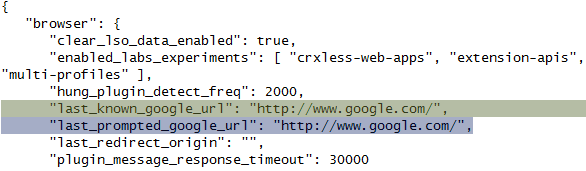
2. Go to Chrome's user profile directory (for example, in Windows Vista and Windows 7 the path is: %LOCALAPPDATA%\Google\Chrome\User Data\).


3. Open the file Local State in a text editor like Notepad, TextEdit or gedit.


4. Find the two lines that include "last_known_google_url" and "last_prompted_google_url" and change the Google URL from "http://www.google.tld/" (.tld=.co.uk, .fr, .co.jp etc.) to "http://www.google.com/" or any other Google domain.


5. Save the text file and restart Chrome.


6. If you see an infobar that asks if you want to switch to your local domain or keep google.com, choose the second option.


This should works even if you want to change Google's domain from google.es to google.pt, from google.be to google.fr or any other combination. If you live in Portugal, but you'd like to use Google Spain and don't know how to change the country in Google Chrome, this trick should be helpful.

New Ways to Access Your Bookmarks in Google Chrome

Friday, August 12, 2011 0 comments
The latest Chrome Dev Channel builds removed the bookmarks bar from the new tab page and updated the new tab page to include a bookmarks section. Right now, Chrome only shows a placeholder: "Bookmarks coming soon", but this should change in the upcoming releases. The updated new tab page now includes multiple screens for apps, most visited pages and bookmarks.


Until the bookmarks section is created, you can find your bookmarks in Chrome's menu.


There's also the bookmarks manager and the Omnibox, which suggests relevant bookmarks when you start typing a URL or some words from the title. You can still enable the bookmarks bar (Ctrl+Shift+B), but it will always be visible until you disable it.


Chrome's updated new tab page is inspired by mobile operating systems like iOS and Android. You can create multiple screens for apps and the most visited sites, remove sites and apps by dragging them to the trash and transform sites into apps using drag and drop. The new tab page uses dynamic icons that are resized to match the window's size.


{ Thanks, Cougar. }

Chrome 13

Tuesday, August 2, 2011 0 comments
Google released the first stable Chrome 13 build a week later than originally planned. Chrome 13 brings print preview for Windows and Linux, page prerendering and partial URL matching in the address bar.

Print preview uses the built-in PDF viewer, so it only works if you use the default settings and you haven't enabled Adobe Reader's plugin. Unlike other browsers, Chrome doesn't have a separate menu item for print preview and there's no modal window. When you click "Print", Chrome opens a new tab that shows the page converted to PDF and a small number of options for printing. For more advanced options, click "advanced" to open the native printing dialog.

Since Chrome automatically generates a PDF file, you can easily save it by selecting "Print to PDF" from the "Destination" drop-down.


Prerendering extends an old Firefox feature called prefetching. Instead of only loading the HTML code of a page, prerendering loads the page and all the associated resources (images, scripts, CSS files), while also running the active content. This is useful if it's very likely that the visitor of a page will go to another page and it makes sense to load the second page in the background. Google is the first site that uses prerendering. It loads the top search result if it's very likely that users will click it (e.g.: for navigational queries like [CNN], [Princeton]). Any developer can use prerendering by adding rel="prerender" to a link tag, but it should be used sparingly.

Another new Chrome feature improves the address bar by adding support for partial URL matches in your browser history. This means that you can type "web" in the address bar and Chrome will match "http://picasaweb.google.com" if you've previously visited the page, just like in Firefox. "The omnibox, Chrome's combination search box and address bar, has gotten much smarter in the latest release, making it even easier for you to get back to pages you've visited before. Just type part of the page's address or title and look in the dropdown for matching pages from your history," explains Google.

Chrome 13 is special because Google offered "$17,000 of rewards" to the security experts who found vulnerabilities in Chrome's code. This is "possibly the best haul yet," mentions Google.

{ Thanks, Gal. }

An Easy Way to Find Chrome Web Apps

Tuesday, July 12, 2011 0 comments
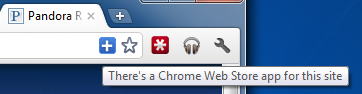
Mihai Parparita, who is now a Chrome engineer, wrote a Chrome extension that lets you find apps from the Chrome Web Store without visiting the store. The extension simply adds a plus icon to the address bar when you visit a site that has a corresponding app in the Chrome Web Store.


"Discovery (i.e., how a user finds apps to install) is an interesting aspect of app stores. In some ways, discovery is not necessary: a significant appeal of the store is that it catalogs all the apps, so if the user is looking for a todo list or Twitter client, it's pretty obvious what to search for. However, that assumes that the user has a specific need in mind already, and is aware that that class of application exists," explains Mihai.

For now, Mihai's extension is just an experiment. The list of supported apps is included in a text file, which is incomplete and has to be updated. One of the advantages of using a static list is that the extension doesn't send your browsing history to a server. Another advantage is that it's much easier to find matches for the sites you've already visited. After installing the extension, a page titled "there's a Web app for that" will suggest some apps for the sites you're visiting frequently.


It's important to mention that the Chrome Web Store only lists official hosted apps. "If your hosted app is listed in the Chrome Web Store, you must prove that you control each domain specified in [the app field]," informs Google. There's a workaround for this, as the unofficial Google Music app shows: linking to a local HTML file that redirects to the app's URL. The Google Music app is a packaged app, not a hosted app, so Mihai's extension doesn't include it.

Right now, most of the apps are just shortcuts and the main benefit is that they're easily accessible from the new tab page. Some apps offer additional features and a small number of apps are actually full-fledged extensions (packaged apps). Google doesn't categorize apps and doesn't inform users if an app works offline.

A Chrome Extension for Google Music

Thursday, June 23, 2011 0 comments
While there's no official extension for Google Music and not even an app in the Chrome Web Store, you can install a really cool third-party extension called "Better Music Beta". The extension adds a button that shows information about the currently playing song, lets you pause the song, go to the next song, add a thumbs up or a thumbs down. There's also a notification that shows up every time the song changes.

My favorite feature is the Last.fm integration: if you enable it, Better Music Beta scrobbles your songs and lets you publicly show that you love a song by clicking the "heart" icon.

The downside is that you still have to open Google Music in a tab, since the music stops playing if you close the tab. Converting the extension into a "background app" would solve this problem.


Google Music requires an invitation and it's supposed to be US-only, but it works even if you're not in the US. Google only checks your location when you request an invitation and you can always use a US proxy for this one-time action. Another interesting thing is that, even though Google Music lists Flash as a requirement, the service works pretty well on an iPad.

Chrome 14 Blocks Insecure JavaScript

Wednesday, June 22, 2011 0 comments
Chrome 14, only available in the Dev and Canary channels right now, adds a security feature that could affect a lot of sites. If you're visiting an SSL site that loads some scripts using unencrypted connections, Chrome will refuse to load the scripts.


When a website is secured via HTTPS, the web site designer must also ensure that all of the scripts used by the page will be delivered in the same secure manner as the main page itself. The same requirements also apply to the plugins and external CSS stylesheets used by the page, as these have the same considerations as javascript. When this is not the case (sometimes called a 'mixed script' situation), visitors to the site run the risk that attackers can interfere with the website and change the script so as to serve their own purposes.

Traditionally, browsers have run the mixed script, genuine or not, and notified you after-the-fact by a broken lock icon, a dialog box, or a red https:// in the location bar (in the case of Google Chrome). The problem with this approach is that by the time the script has run, it is already too late, because the script has had access to all of the data on the page. Google Chrome now protects you by refusing up-front to run any script on a secure page unless it is also being delivered over HTTPS.

You can bypass this feature by clicking "Load anyway" in the infobar displayed at the top of the page, but Chrome doesn't remember your preference. Unfortunately, you can't whitelist a domain or a subdomain, so you'll have to click "Load anyway" and wait until the page is reloaded. There's a command-line flag that lets you disable this feature: --allow-running-insecure-content, but Google says that it should only be used by "users and admins who have internal applications without immediate fixes for these errors".

Chrome has recently added many other security features, including a function for generating strong random numbers, a way to force HTTPS for any domain you want, an initial implementation of Content Security Policy that helps protect against Cross Site Scripting and a more secure Gmail that uses HTTPS for all connections, even when you type "gmail.com" in the address bar.

Chromification of the Operating System

Saturday, June 18, 2011 0 comments
Three years ago, when Google launched Chrome many people wondered if it will be successful. Chrome became a very popular browser, with more than 160 million active users, but its most important achievement was accelerating the development of all the other browsers and shifting their priorities from adding UI features to removing clutter, making them faster and better suited for running Web apps. Internet Explorer embraced HTML5, Firefox started to update more often, Opera simplified its interface. Google started from the scratch and created a browser for today's Web apps.


For some, Chrome OS may seem pointless. Why buy a notebook that can only run a single program, when you can install Chrome on your existing computer? But why switch from Firefox to a browser that doesn't support advanced extensions? After all, Firefox is a lot more customizable than Chrome since any extension can dramatically alter the interface and integrate with the browser. It turns out that Firefox extensions can sometimes slow down the browser, some use a lot of resources, they're difficult to update and every new major release can break them. Chrome's extensions are less powerful, but they don't slow down the browser, they're easier to develop and to maintain and major new releases rarely break them.

Just like Chrome influenced all the other important browsers, Chrome OS will change the other operating systems. Sandboxing applications can make the operating system a lot more secure, saving your settings and files online allows you to use them from any other computer, Web applications are powerful enough to replace some of the native apps and they don't live on your computer, so they can be constantly updated. Even Windows intends to switch to "Web-powered apps built using HTML5 and JavaScript that have access to the full power of the PC" in the next major release, while still supporting "legacy" apps. It's obvious that most of the apps will eventually migrate to the Web and Chrome OS is better suited to support them because it doesn't have to worry about legacy apps and because it's designed just like a Google Web app: constantly updated, fast, clutter-free. "The future is already here – it's just not evenly distributed," said William Gibson. Chrome OS is ready... when you are.


{ image from the Chrome Comic Book, licensed by Google as Creative Commons }