Showing posts with label Web Search. Show all posts

Google's Snowy Easter Egg

Saturday, December 17, 2011 0 comments
If you search for [let it snow] using Google, you'll have a hard time checking the search results. Google uses a JavaScript animation that adds some snowflakes and covers the entire page with snow.


Fortunately, Google added a "defrost" button that makes the search results reappear. You can also click anywhere on the page and move your mouse to "defrost" the page or draw something. Click the "+" button and you can share the Easter egg with other Google+ users.


{ Thanks, Venkat. }

Google Mobile Search Increases Text Size

Saturday, December 10, 2011 0 comments
Google Mobile Search increased the text size for search results and reduced the number of words from the snippets. While this change made search results more legible, it also reduced the number of results that are displayed before you start scrolling.

On an iPhone, Google only displays two results in their entirety, instead of three results, and the snippets are way too short.

Old UI:


New UI:

Google Search Pages Hide +1 Buttons

Friday, December 9, 2011 0 comments
+1 buttons no longer clutter Google's search results pages. They're now displayed when you mouse over the results for most of the pages. If you have +1'd a page, the button will be displayed by default to highlight the result.


In other search-related news, the preferences page has a new interface with custom controls, while the advanced search page switched back to the old interface. Maybe someone read this post and decided to fix the drop-down lists.


When Recent Searches Change Your Google Results

Wednesday, December 7, 2011 0 comments
Google uses your search history to personalize the results for your future queries. That's not a new feature, but it was only used to disambiguate queries and to change the order of the results.

Now you might also see a small message next to the snippet which explains that the result was picked because you've searched for a different keyword before. For example, if you search for [tablet] and then search for [asus] Google will include some tablet-related search results and even highlight a page about the Asus Transformer. Right now, this feature is only available in the US.


Sometimes this could be useful. Google connects the dots and tries to provide better results by using keywords from your previous searches. But that's not always a good idea because two consecutive queries aren't necessarily related. You could search for [html table] and [blackberry] and the second result for [blackberry] will be:


Google's algorithms aren't perfect and Google should provide an obvious way to hide the "enhanced" results. You can scroll to the bottom of the page, click "view customizations" and then click "without these improvements", you can also "disable customizations based on search activity" if you aren't logged in, but these options are cumbersome.

{ Thanks, Nick. }

Google's Graphing Calculator

Monday, December 5, 2011 0 comments
Now you no longer need to use Wolfram Alpha to plot Math graphs. Google shows an interactive graph when you search for a Math function or a list of functions separated by commas. "You can zoom in and out and pan across the plane to explore the function in more detail. This feature covers an extensive range of single variable functions including trigonometric, exponential, logarithmic and their compositions, and is available in modern browsers," explains Google.

For example, you can search for [sin(x)/x, 1/x^2] to see this beautiful SVG graph.


You can also search for [sin(x) from -pi to pi] or add extraneous words like "plot", "graph" to the query (example: [graph ln(x)]).


{ Thanks, Arpit. }

Cached Pages in Google Mobile Search

Monday, November 28, 2011 0 comments
Maybe it's not so obvious, but the link to the cached version of a search result is still available when you're using Google Search on a mobile phone. Just like in the desktop interface, you need to click the Instant Preview icon (a magnifier) and you'll find the "cached" link.


For some reason, the links to the mobile formatted version and to the list of similar pages are no longer displayed. To go back to the old interface that displayed all these links next to the search results, bookmark http://www.google.com/m or replace "google.com/search" with "google.com/m/search" in the URL (just add the two characters in bold).

Restrict Google Results to Mobile Apps

Tuesday, November 22, 2011 0 comments
Google's search engine for mobile apps is now available in the sidebar. Just click "More" in the left sidebar and select "applications" to restrict the results to Android and iOS applications. The results aren't only from Apple's App Store and Google's Android Market: you'll also find results from AppBrain, AndroidZoom, CNet and more. Unfortunately, you can't restrict the results to iOS apps or Android, find iPad apps or filter the apps by rating or price.

Here are the results for [games]. The search engine doesn't have a proper homepage, but you can bookmark this page.


The search engine for mobile apps was initially available in the mobile version of Google Search as an OneBox, and then as a search option. Earlier this year, Google added support for app-related rich snippets.

Table Snippets in Google Search

Thursday, November 17, 2011 0 comments
Google has improved the snippets for the pages that include big tables. They're just like the snippets for lists, but columns are clearly separated and snippets also include the table header.


Barry Schwartz says that "Google is trying to figure out the make up of the old fashion HTML tables to show the snippet in a table format". Google also finds the most relevant columns from the table and usually displays the first two rows.

{ Thanks, Herin. }

Google Verbatim

Wednesday, November 16, 2011 0 comments
Your query is just the starting point for Google's searches. Sometimes Google fixes misspellings, replaces some of the keywords with synonyms or other related keywords, disambiguates your query using your search history. These changes usually improve the quality of Google results because it's hard to come up with the perfect query and improving the query is the first thing you need to do to get better results.

Unfortunately, Google's adjustments aren't always helpful and this adds noise to the list of the search results. For example, I've noticed that Google matches many pages that mention "iPhone 4" when you search for [iPhone 4S] and that's a really big mistake. Having to use quotes every time you enter a query that includes "iPhone 4S" is annoying, but that's probably an issue that will be fixed when there are more pages that mention the name of Apple's latest phone.

Another way to improve Google's query adjustment algorithms is to use "Verbatim", a new feature from the search options sidebar. Just click "show more search tools" in the sidebar, select "Verbatim" and Google will no longer change your query.


"With the Verbatim tool, you can search using the exact keywords you typed," explains Google. Verbatim disables Google's spelling corrections and Google no longer replaces some of your keywords with synonyms (e.g.: television / TV), similar terms (e.g: buy flowers / send flowers), words with the same stem (e.g.: fixing / fix). Verbatim also disables search personalization.

Here are the results for [iPhone 4S fixing battery], after/before enabling Verbatim.


"In addition to verbatim search, which will be rolling out to all users over the next few days, we're also applying similar ideas directly to our algorithms, such as tuning the accuracy of when our query broadening search improvements trigger. In the meantime, if you want to search for a very specific term, be that [carosel] or the [etymology of sissors], give the verbatim tool a try," mentions Google.

{ Thanks, Venkat and Herin. }

Google's Info Panes

Monday, November 14, 2011 0 comments
Google's search results are usually a great source of information, but Google's goal has never been to send users to other pages. If Google can provide an instant answer to a query, then the answer is usually displayed in an OneBox, at the top of the search results page. Here's a movie OneBox from 2007:


Google's OneBoxes have provided weather forecasts, simple facts, definitions, unit conversions, stock information, movie times, sports scores, maps, package tracking information, in addition to results from other specialized search engines. They're still useful, but Google can now provide a lot more information. You've probably noticed that OneBoxes are bigger and more complex these days:


Sometimes OneBoxes replace the top search results, as you can see if you try a query related to local businesses, like [pizza ny]:


The latest evolution of the OneBox is a huge section placed on the right side of the page. It doesn't have an official name yet, but I'll call it the info pane. For general local queries, it displays a static map. If you search for a local business, it now shows information about the business from Google Places.


Google also tests an info pane that shows information about people and companies: a search for [Twitter] shows the name of the CEO, the company's address and other information from Wikipedia. It's likely that the structured data is generated by Freebase, which is now owned by Google.


Google's info panes could include a lot of useful information: detailed answers, fact sheets, interactive widgets, music/video players, slideshows etc. It's a new way to display information and the space constraints of the OneBox have disappeared, now that the ads will be moved to the bottom of the page.

{ Thanks, Jérôme. }

Google's Location-Based Social Annotations

Friday, November 4, 2011 0 comments
You've probably noticed that Google annotates search results with social data, especially from Google+ and Google +1. You'll sometimes see that a page was mentioned in a Blogger post or a Twitter message by one of your Google+ friends. For other results, Google lists the Google+ friends that +1'd the pages.


If a page has a lot of +1's, Google occasionally shows the number of +1's bellow the snippet. To make the annotation more relevant, Google now shows the number of +1's from your location. For example, "763 people in New York, NY, USA +1'd" Google's Webmaster Tools page.


I'm not sure that it's useful to know the number of +1's for the top results of a navigational query, but this could be useful when you're trying to find a popular restaurant or an Android game.

{ Thanks, Nick. }

Google's Barrel Roll Easter Egg

Thursday, November 3, 2011 0 comments
If you use Google to search for [do a barrel roll] in Chrome, Safari or Firefox, you'll notice that the search results page actually does that. It's a brilliant Easter Egg that will surprise a lot of Google users.

According to Wikipedia, "a barrel roll is an aerial maneuver in which an airplane makes a complete rotation on its longitudinal axis while following a helical path, approximately maintaining its original direction."


There are at least four other Google search Easter Eggs: ASCII art, anagram, recursion and tilt.

{ Thanks, Herin. Spotted by Jason Cross. }

Yet Another Google Search Experiment

Monday, October 31, 2011 0 comments
Google tests a new search interface that brings back the icons for specialized search engines, but displays them in a horizontal list, below the search box. The icons are redundant right now, but they might replace the list from the sidebar, just like in the experimental interface for tablets.

Google Tests a New Search Interface for Tablets

Wednesday, October 26, 2011 0 comments
Google experiments with a slightly different search interface for tablets. There's a new settings button below the search box that lets you disable SafeSearch and use the advanced search filters. The most popular specialized search engines are no longer hidden behind a small arrow: the new interface mimics the desktop UI and displays a list of search engines, followed by a "more" link. It's quite obvious that the navigation bar starts to become unnecessary, now that the settings button and most navigation links are displayed below the search box.


Three months ago, Google launched an interface optimized for iPad and Android tablets.

Google's Plus Operator, No Longer Available

Saturday, October 22, 2011 0 comments
The plus operator from Google Search was useful to highlight one or more keywords that had to be included in the search results exactly as you typed them. If you search for [ai], Google matches terms like "artificial intelligence", "Amnesty International", "Art Institutes", "Appraisal Institute", "Adobe Illustrator" and that's not so useful. To restrict the results to pages that include "ai", you had to replace your query with [+ai]. Unfortunately, the plus operator is no longer available and you now have to use quotation marks even for single words and search for ["ai"].


"Google employs synonyms automatically, so that it finds pages that mention, for example, childcare for the query [ child care ] (with a space), or California history for the query [ ca history ]. But sometimes Google helps out a little too much and gives you a synonym when you don't really want it. By putting double quotes around a single word, you are telling Google to match that word precisely as you typed it," informs the Web Search help center.

The plus operator was easier to use for single words and it was intuitive, considering that the minus operator is employed to exclude results that contain a certain word. Maybe Google wants to use the operator to integrate Web Search with Google+.


{ Thanks, 7E. }

Google Shows Your IP Address

Wednesday, October 19, 2011 0 comments
One way to find your IP address is to search for [my ip] using Google and click the top search result. Now it's no longer necessary to go to the first result because Google answers your questions and shows your IP. You can use: [my ip], [my ip address], [show my ip], [what is my ip] and other similar queries.


"Just like a street address determines the recipient of a letter, an IP address (short for Internet Protocol address) is used to identify computers on the Internet. When your computer sends a request, such as a Google query, it tags the request with its IP address in order for the response to be sent back to your computer -- just like a return address on a letter. (...) When you type the query [ what is my ip ], Google will respond by showing you the IP address of the computer from which the query was received. In the simplest case, this IP address uniquely identifies your computer among all computers on the Internet," explains Google.

{ Thanks, Venkat. }

Google Encrypted Search for Logged-in Users

Tuesday, October 18, 2011 0 comments
Google announced that in the coming weeks all Google.com users that are logged in will be redirected to Google Secure Search. The secure version of Google Search has been launched last year and now includes all the features from the regular Google interface. The main difference is that the connection is encrypted and Google is the only one who knows the queries you've typed. ISPs, network administrators, those who intercept your connection and the webmasters of the pages from Google's search results won't able to find your searches. "SSL encrypts the communication channel between Google and a searcher's computer. When search traffic is encrypted, it can't easily be decoded by third parties between a searcher's computer and Google's servers," as Google says.

"As search becomes an increasingly customized experience, we recognize the growing importance of protecting the personalized search results we deliver. As a result, we're enhancing our default search experience for signed-in users. Over the next few weeks, many of you will find yourselves redirected to https://www.google.com (note the extra 's') when you're signed in to your Google Account. This change encrypts your search queries and Google's results page. This is especially important when you're using an unsecured Internet connection, such as a WiFi hotspot in an Internet cafe," explains Google.


Right now, https://www.google.com no longer redirects to https://encrypted.google.com and Google no longer informs users that they're using Secure Search. It's important to keep in mind that no other search engine offers this feature and SSL has a performance penalty, which means that search results pages will load slower. This is especially noticeable when you use Google Instant and the results won't show up as fast as before.

After the security incident from December 2009, Google went to great lengths to make its services more secure. Most services that require authentication default to SSL and many no longer offer unencrypted versions. It's interesting to see that Google Search will be treated just like Gmail, Google Docs, Google+ and other services that store user data even if this change won't make too many people happy (users will complain that search results pages load slower, webmasters will complain that their logs will be less useful, AdSense ads from search results will no longer be able to use the Google query and fewer users will click them, companies won't be able to monitor their employees' Google searches). Google already offers some solutions that address these issues: webmasters can use Google Webmaster Tools to find the most popular Google searches that sent users to their sites, while network admins can try the NoSSLSearch option.

It's an important change, but I don't see why signed-in users should be treated differently and why protecting user queries outweighs the drawbacks mentioned earlier. One of the explanations could be that search will no longer be a distinct service and will integrate with Google+, Gmail, Google Docs Drive so much that it will be hard to notice when you've switched to a different app. Larry Page, Google's CEO, has recently said that "our ultimate ambition is to transform the overall Google experience, making it beautifully simple, almost automagical, because we understand what you want and can deliver it instantly. This means baking identity and sharing into all of our products so that we build a real relationship with our users. Sharing on the Web will be like sharing in real life across all your stuff."

Google Updates the Dictionary OneBox

Tuesday, October 11, 2011 0 comments
Google updated the interface of the Dictionary OneBox and added synonyms. They were already available if you clicked "more info" to see the entire list of definitions, but synonyms are useful enough to be displayed in the OneBox.


Another change is that the OneBox includes more definitions for each part of speech:


To trigger the Dictionary OneBox, search for [define word] or [word definition]. In some cases, Google shows the OneBox even if you don't include "define" or "definition". For example, if you search for [obnubilate], Google will show the definitions because it's likely that they're useful for many people.

{ Thanks, Bora and Venkat. }

How to Find Visited Pages in Google Search

Thursday, September 29, 2011 0 comments
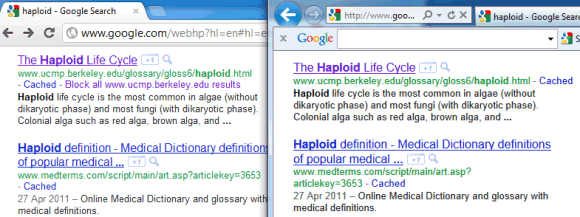
I'm not sure if this is a new feature, but it's pretty useful. Like most websites, Google's search engine changes the color of visited links from blue to purple. All browsers handle links this way by default, but websites can alter the colors using some CSS code.

If you're logged in using your Google Account and Web History is enabled, Google saves all the search results you visit to your Web History. When you're using a different browser or a different computer and you're logged in using the same account, Google changes the color of the visited links from blue to purple, irrespective of the browser or computer you've used to visit them. For example, I searched for [haploid] using Chrome, I clicked on one of the results, then I tried the same query in Internet Explorer and the page I've visited in Chrome already had a purple link.


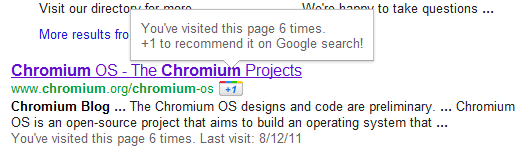
Google also has a search filter that lets you restrict the results to visited pages. Just click "More search tools" in the sidebar and select "Visited pages". For pages you're visiting frequently, Google shows an annotation below the snippet: "You've visited this page X times. Last visit: ...". When you mouse over the snippet, Google suggests to +1 the link: "You've visited this page X times. +1 to recommend it on Google search!".


{ Thanks, KoalaBear. }

Google's New Search Interface Disables Many Shortcuts

Friday, September 23, 2011 0 comments
With the latest redesign of the search results pages, Google made it more difficult to use most of the keyboard shortcuts that allowed you to quickly select a result or see a small preview.

Until now, you could type your query, press Enter to hide the list of suggestions and press Enter once again to go to the first result. If you didn't like the first result, you could press the down arrow to select the second result. Google also included a keyboard shortcut for Instant Previews: the right arrow. None of these shortcuts are available in the latest interface, at least not by default. Now you need to press Tab after performing a search to enable the old keyboard shortcuts.

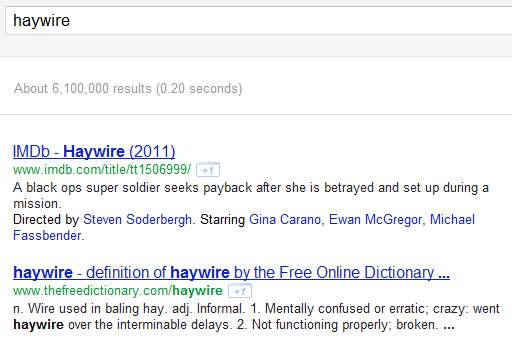
Here's a search results page after typing a query (notice that there's no arrow next to the first result):


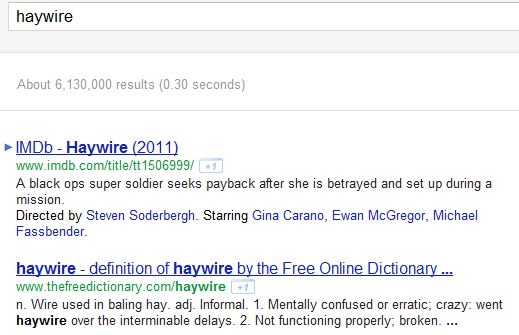
Here's what happens when you press Tab (you can use the up/down arrows, but the shortcut for Instant Previews no longer works):


Google probably disabled these features because not many people used them and a lot of users complained that the shortcuts made navigation more difficult. Power users need to learn that Tab enables keyboard shortcuts, but having to enable the feature every time you use Google Search is annoying. After all, shortcuts were supposed to make your life easier and help you be more productive.

Google Instant shortcuts are still available. You can continue to use the up/down arrows to select a different search suggestion, the right arrow to visit the first result for the search suggestion, Tab to use Google's suggestion and continue to type your query, Esc to select the query so you can quickly overwrite it.

{ via Google Search Help Forum }